











01Auto-seat
Notes in, plan out
Write things like keep the family together, or put the cousins at a table of their own. Vision turns the notes into rules and seats the room.
Write your seating notes the way you would say them out loud, and get a plan with a reason for every move. Drop in a messy guest sheet and get a clean list back.
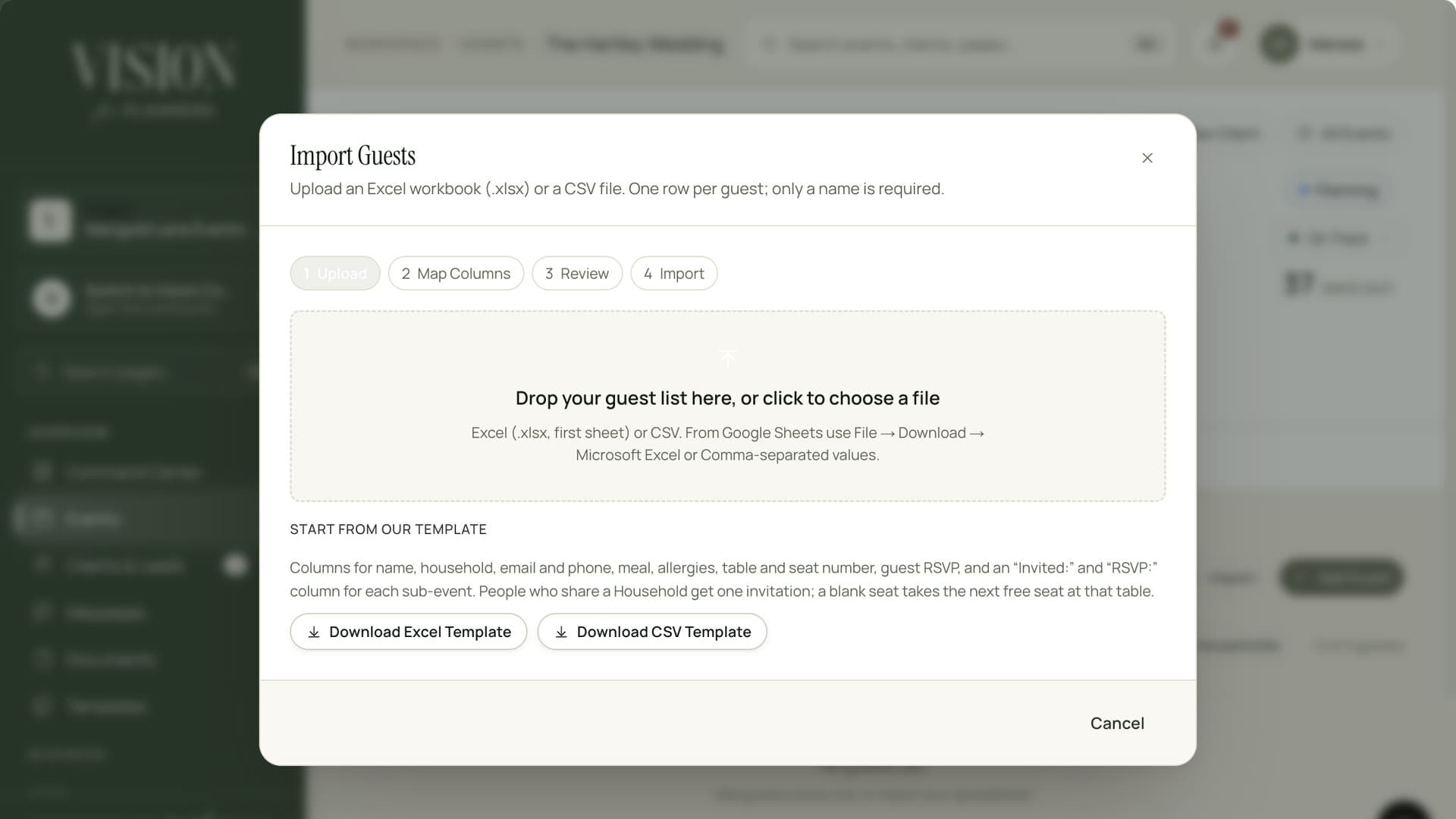
Bring in a spreadsheet and watch the columns match themselves.
Two hundred guests, forty opinions and one spreadsheet.

Fixing columns and moving names around a floor plan is the kind of work that eats an evening. Vision does the first pass.
Write things like keep the family together, or put the cousins at a table of their own. Vision turns the notes into rules and seats the room.
The preview shows who moves where and why, so you can accept the plan or tweak it before it is applied.
Upload the list as it arrived. Columns are matched, households such as John and Jane Smith are split and plus-ones are read.
Likely duplicates are flagged in the preview, so a guest does not appear twice on the day.
Both tools show a preview first. Discard it and the AI use is returned to your allowance.
Imported guests are ready for invitations, RSVPs and the seating plan, with no retyping.

Before anything reaches the AI, guest names are swapped for aliases such as G12 or H3, and an import sends only column names and the shape of the values. The matching back to real people happens in Vision.
Import a spreadsheet as it is, or add people by hand.
Say who sits together, who should be apart and who needs a particular table.
Check the preview with its reasons, change what you like and apply the plan.
Auto-seat is in beta. It always shows a preview, so nothing moves until you apply it.
No. Names are replaced with aliases before the notes are read, and imports send only headers and the shape of values.
Up to 1,000 rows and 60 columns at a time.
Discard the preview and nothing changes. The AI use for that attempt is returned to your allowance.

The Founding Planner Beta is open. Early access, direct input on what gets built, and pricing locked in before public launch.
Empowering the people behind extraordinary events